
How to Check Word Count on Google Docs (Stop Guessing!)
Introduction
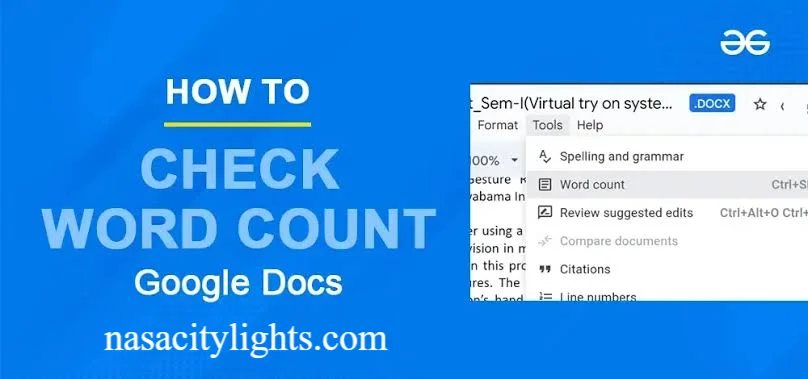
If you want to know how to check word count on Google Docs right now, here it is. Click Tools in the top menu, then select Word Count. A small box will pop up showing your total words, characters, and pages. You can also press Ctrl and Shift and C on Windows, or Command and Shift and C on Mac, for the same result in half a second.
Now let us walk through every method in detail, so you never have to wonder again.
Why Checking Your Word Count Actually Matters
Picture this. You are writing a blog post, an essay, or a work report, and your editor says it needs to be exactly 800 words. You finish typing and have no idea if you are at 600 or 900. That guessing game wastes time and adds stress.
Learning how to check word count on Google Docs solves this problem instantly. Whether you are a student meeting an assignment limit, a freelancer billing by the word, or a marketer writing SEO content, tracking your word count keeps your work on target.
I write content daily, and honestly, the word count tool is one of the first things I check before submitting any draft. It takes five seconds and saves a lot of back and forth with clients.
Method 1: Using the Tools Menu
This is the most common way people check word count on Google Docs, especially if you are new to the platform.
Here is how it works:
- Open your Google Docs file
- Click on Tools in the top menu bar
- Select Word Count from the dropdown list
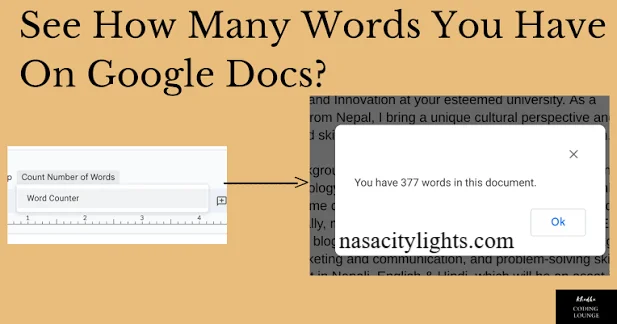
- A popup window appears showing your total words, characters, characters without spaces, and pages
This method works whether you are checking the entire document or just a highlighted section. If you select a specific paragraph before opening the tool, it shows the count for that selection only.
Method 2: The Keyboard Shortcut
Once you know the shortcut, you will probably never use the menu again. It is that much faster.
| Operating System | Shortcut |
|---|---|
| Windows | Ctrl + Shift + C |
| Mac | Command + Shift + C |
| Chromebook | Ctrl + Shift + C |
Press this combination anytime while working on your document, and the word count box appears right away. This is by far the fastest way to check word count on Google Docs while you are typing.
Method 3: Real Time Word Count While You Type
Did you know Google Docs can show your word count on screen the entire time you are writing, without you clicking anything?
Follow these steps:
- Open the Word Count popup using Tools or the keyboard shortcut
- Check the box that says Display word count while typing
- Click Close
A small floating counter will now sit at the bottom left corner of your screen. It updates live as you type, delete, or edit. This feature is incredibly useful for writers who work with strict word limits, like journalists or students submitting essays.
Method 4: Checking Word Count on Mobile
Many people write on their phones or tablets today, and Google Docs mobile app supports word counting too.
On the Google Docs app for iPhone or Android, tap the three dot menu icon in the top right corner, then tap Word Count. A small box will display your totals immediately.
This is genuinely helpful when you are editing on the go and need a quick answer without opening a laptop.
Method 5: Word Count for a Specific Selection
Sometimes you do not want the whole document count. Maybe you only need to know how long one paragraph or one section is.
Simply highlight the text you want measured, then open the Word Count tool using Tools or the shortcut. The popup will now show two sets of numbers, one for the full document and one for your selected text. This small trick is a lifesaver when your editor asks for a specific section length.
Comparing Google Docs Word Count to Microsoft Word
Many writers switch between platforms, so a quick comparison helps.
| Feature | Google Docs | Microsoft Word |
|---|---|---|
| Live word count display | Yes, optional toggle | Yes, shown in status bar by default |
| Keyboard shortcut | Ctrl or Command + Shift + C | No default shortcut |
| Mobile word count | Yes, in app menu | Yes, in review tab |
| Character count | Yes | Yes |
| Page count | Yes | Yes |
Both tools are reliable, but Google Docs tends to be quicker for casual writers since everything saves automatically to the cloud and syncs across devices.
A Quick Look at the Numbers
According to writing industry surveys, the average blog post that ranks well on search engines runs between 1500 and 2500 words. Freelance writers on major platforms often get paid per word, with rates ranging widely depending on niche and experience. This is exactly why learning how to check word count on Google Docs is not just a technical skill, it directly affects income and deadlines for many professionals.
A content strategist I spoke with mentioned that writers who track word count consistently tend to submit more polished, better paced drafts, because they naturally learn to trim filler and stay focused on the topic.
Common Mistakes People Make
- Forgetting that footnotes and comments are not included in the word count
- Assuming the character count includes spaces when it actually offers both options
- Not realizing that headers and titles are counted as part of the total words
- Checking word count after formatting, which can sometimes shift totals if hidden text or tables are involved
Avoiding these small errors makes your word tracking much more accurate.
Tips to Manage Word Count Efficiently
- Set a target before you start writing, not after
- Turn on the live word counter if you are working with a strict limit
- Check selection based counts when editing specific sections
- Use the mobile app counter when reviewing drafts away from your desk
- Revisit your count after major edits, since deleting or adding paragraphs changes totals quickly
These habits make the entire writing process smoother and prevent last minute surprises.
Final Thoughts
Knowing how to check word count on Google Docs is one of those small skills that makes a big difference once you use it regularly. Whether you prefer the Tools menu, the keyboard shortcut, or the live counter, Google Docs gives you multiple simple ways to stay on top of your writing goals.
Try the shortcut next time you open a document. Once you get used to Ctrl or Command plus Shift plus C, checking your word count becomes second nature. If this guide helped you, share it with a classmate, coworker, or fellow writer who still counts words manually.
Frequently Asked Questions
How do I check word count on Google Docs quickly? Press Ctrl and Shift and C on Windows or Command and Shift and C on Mac. The word count box appears instantly showing words, characters, and pages.
Can Google Docs show word count while typing? Yes. Open the Word Count tool, check the box for Display word count while typing, and a live counter appears at the bottom of your screen.
Does Google Docs word count include the title? Yes, any text typed into the title field or document headers is included in the total word count.
How do I check the word count of just one paragraph? Highlight the paragraph you want to measure, then open the Word Count tool. It will show a separate count for your selected text alongside the full document count.
Is there a word count feature on the Google Docs mobile app? Yes. Tap the three dot menu in the top right corner of the app and select Word Count to see your totals.
Does the character count include spaces? The Word Count tool shows both totals separately, characters with spaces and characters without spaces.
Why is my word count different after formatting the document? Tables, footnotes, and certain hidden elements can sometimes affect how totals are calculated, so always recheck after major formatting changes.
Can I check word count without an internet connection? Yes, as long as you are working in offline mode with Google Docs enabled for offline access, the word count tool still functions normally.
nasacitylights.com
Email: johanharwen314@gmail.com
Author Name: Hamid Ali
About the Author: Hamid Ali is a content writer who focuses on practical guides for everyday productivity tools. He enjoys breaking down simple tech features into clear, easy to follow steps that save readers time and effort.