
Google Play Store App Deletion: Complete Guide for Android Users in 2026
Introduction
Google Play Store app deletion can mean several different things, depending on whether you want to uninstall an application from your Android phone, remove an old app from your Play Store library, or take an app offline as a developer. Understanding these differences helps you choose the correct method without accidentally losing important information or access to an application you still need.
Google provides options for managing installed applications, reviewing previously downloaded apps, and controlling published listings through Google Play Console. This guide explains each process in simple steps, including what happens after an app is removed, how to manage your download history, and what developers should know before permanently deleting an application.
What Does Google Play Store App Deletion Mean?
The term Google Play Store app deletion does not always refer to the same action. For everyday Android users, it commonly means uninstalling an application from a phone or removing an uninstalled app from the account’s library. For developers, it can mean unpublishing an application so new users cannot download it or permanently deleting an eligible app from Google Play Console.
These actions have different results. Uninstalling removes the application from your device, while removing an entry from your library changes how that app appears in your Play Store account. Unpublishing affects public availability, whereas permanent deletion is a separate developer action subject to Google’s eligibility requirements. Identifying your goal first helps prevent confusion and unnecessary data loss.
How to Uninstall an App Through the Google Play Store
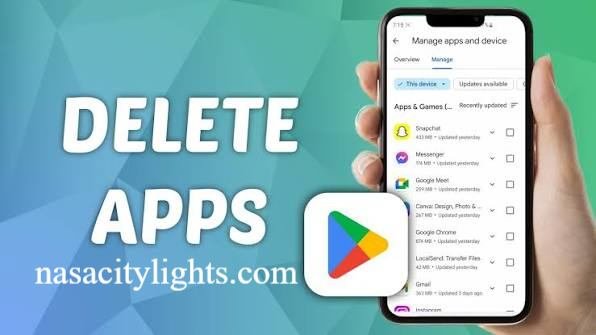
If an application is taking up storage space, causing problems, or no longer serving a purpose, you can uninstall it through the Play Store. This method is useful because it lets you locate installed applications and remove the one you no longer want. The exact labels may vary slightly depending on your Android version and Play Store interface.
Follow these steps to uninstall an application:
- Open the Google Play Store on your Android phone.
- Tap your profile picture in the upper-right corner.
- Select Manage apps & device.
- Open the Manage tab and locate the installed application.
- Tap the app’s name.
- Select Uninstall and confirm your choice if prompted.
After uninstalling, the app is removed from your device, but associated online accounts and cloud-stored information may remain. Data stored locally may be deleted, so back up important files before proceeding. If you later change your mind, you may be able to reinstall the app, provided it remains available and compatible with your device.
How to Remove Apps From Your Google Play Library
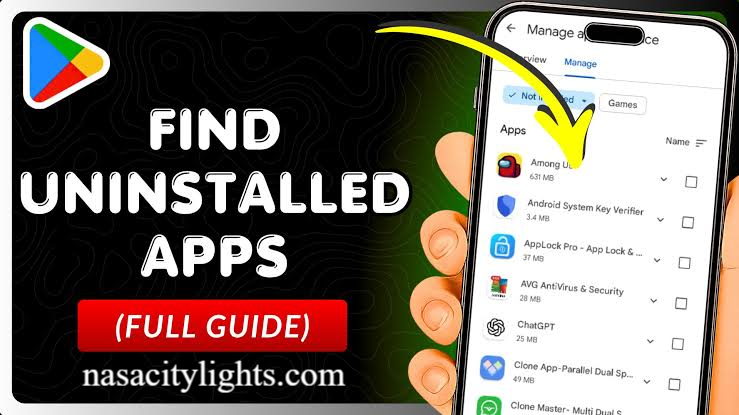
Sometimes, users want to clean up their Play Store library rather than uninstall an application. For example, an app you removed months ago may still appear in the list of applications associated with your account. Google Play provides a way to manage eligible previously installed apps, although interface options can vary.
To remove an eligible app from your library:
- Open Google Play Store and tap your profile icon.
- Select Manage apps & device, then open Manage.
- Change the Installed filter to Not installed.
- Locate the application you want to remove from the list.
- Select the relevant app and look for the available removal or delete option.
If the option is available, follow the on-screen instructions to complete the process. Removing an app from this list is not the same as deleting your Google account, cancelling a subscription, or erasing information held by the developer. If you cannot find the removal control, check Google’s current help instructions for your version of the Play Store.
How Developers Can Unpublish or Delete an App
Developers who want to stop distributing an application have different options from ordinary Android users. Google Play Console allows eligible developers to unpublish apps, which generally prevents new users from discovering and downloading them through the public store. Existing users may still have access, depending on the app and its services.
Permanent deletion is a separate process and is subject to Google’s current eligibility rules. The app may need to be unpublished and meet specific installation or user requirements before the deletion option becomes available. Developers should review the current Play Console guidance, confirm the app’s eligibility, and understand the consequences before proceeding.
A developer should distinguish between these two choices:
| Action | Main purpose | Important consideration |
|---|---|---|
| Unpublish an app | Stop public distribution | Existing installations may remain |
| Permanently delete an eligible app | Remove the app from Play Console under Google’s rules | Eligibility requirements and consequences apply |
| Release an update | Fix issues or maintain an app | Requires continued compliance with Play policies |
Before making a permanent decision, developers should preserve necessary records, review subscriptions and user support obligations, and confirm that the correct app is selected. Menu locations can change, so use the latest official Play Console instructions rather than relying entirely on older tutorials.
Why Apps Disappear From Google Play
Not every missing application has been permanently deleted. Google may remove or suspend an app because it violates developer policies, presents security risks, misuses personal information, or misleads users. Developers can also choose to unpublish their own apps, while compatibility restrictions or regional availability can prevent particular users from seeing a listing.
If an app suddenly disappears, avoid assuming that it has been banned. Search for its exact name, check the developer’s official website, and review any available announcements. The app might be temporarily unavailable, restricted in your country, or incompatible with your device. These checks help you understand the situation before uninstalling an existing copy or searching for another download source.
Google Play Store App Deletion 2025: What Users Should Know
Searches for Google Play Store app deletion 2025 may reflect reports about app removals, security enforcement, or changes to Google’s developer policies. However, a headline about removed applications does not automatically mean that every affected app was dangerous or that Google deleted all installed copies from Android phones. The circumstances and the official explanation matter.
When researching an app removal from 2025, look for reliable reporting and relevant Google announcements. Check the publication date, identify the apps involved, and determine whether the report concerns a policy violation, a security threat, or a change in availability. Avoid treating social media posts or sensational headlines as proof of a wider removal campaign unless credible evidence supports the claim.
What Happens When an App Is Removed From the Play Store?
When Google removes an app listing, an installed copy does not necessarily disappear from your phone immediately. Depending on the circumstances, you may still be able to open and use it. However, its continued operation is not guaranteed because the developer may stop providing updates, close online services, or disable account access.
There are several possible consequences to consider:
- New downloads may no longer be available through Google Play.
- Updates may become unavailable.
- Online features may stop working if the developer closes its servers.
- Security vulnerabilities may remain unpatched.
- Subscriptions, purchases, or account access may require separate attention.
If the app was removed for security reasons, continuing to use it may expose your information to unnecessary risks. Check the reason for its removal when possible, back up important data, and consider a reputable alternative if the application is no longer maintained.
How to Protect Your Android Device After an App Removal
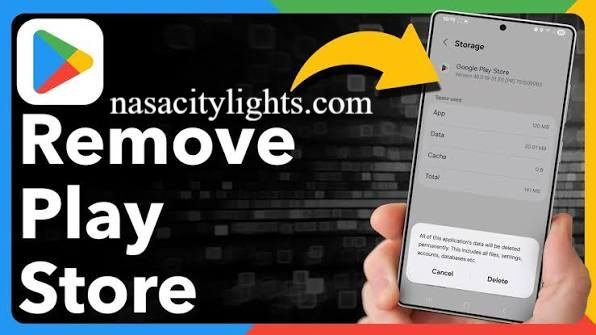
When an application disappears from Google Play, prioritize your device’s security instead of immediately downloading a replacement from an unfamiliar website. Google Play Protect can help identify potentially harmful applications, while Android updates and app permission controls provide additional safeguards. These tools cannot guarantee complete protection, but they can reduce common risks.
Consider taking these precautions:
- Keep Android and your installed apps updated.
- Review permissions for location, contacts, camera, and microphone access.
- Use Google Play Protect to check for potentially harmful apps.
- Back up important photos, documents, and app information.
- Avoid unknown APK download sites and suspicious installation links.
- Change passwords if you suspect that an app exposed your account information.
If you need an alternative, choose a reputable application with a clear developer identity, a reasonable privacy policy, and a recent update history. Avoid granting unnecessary permissions simply to regain a feature you previously had.
How to Recover or Reinstall a Removed App
If you accidentally uninstall an application, search for it in Google Play while signed in to the Google account you used previously. You may also find eligible past downloads under the app management section. If the app is still listed and compatible with your device, you can usually reinstall it using the available installation option.
Recovery may be more difficult if the developer has unpublished the app, Google has removed it, or the application no longer supports your Android version. Before trying other installation methods, check whether the developer provides an official recovery option or a supported web version. Remember that reinstalling an app does not automatically restore data that was stored only on your phone.
Common Mistakes to Avoid During App Deletion
A frequent mistake is confusing app uninstallation with account or data deletion. Removing an application from your phone does not necessarily cancel its subscription or erase information stored on the developer’s servers. Similarly, removing an old app from your library does not mean that all related purchases or records have been erased.
Another mistake is downloading an unofficial copy simply because the original app is unavailable. Modified or unverified installation files may contain harmful code or request excessive permissions. Before taking action, identify whether you need to uninstall an app, clean up your library, cancel a subscription, or manage a developer listing. Choosing the correct process makes the result more predictable and helps protect your data.
Conclusion
Google Play Store app deletion can involve uninstalling an application, managing your previous downloads, or removing a published app through Google Play Console. Each process serves a different purpose, so understanding the distinction is essential before taking action. Android users should check app availability, back up important information, and avoid untrusted installation sources.
Developers should review Google’s current policies and eligibility requirements before unpublishing or permanently deleting an application. Whether you are cleaning up your phone or managing an app listing, relying on official instructions and making informed decisions will help you avoid unnecessary problems.
Frequently Asked Questions
What does Google Play Store app deletion mean?
It can refer to uninstalling an app, removing an eligible entry from your Play Store library, or deleting an app through Play Console.
How do I uninstall an app through Google Play Store?
Open the Play Store, select your profile, go to Manage apps & device, open Manage, select the app, and tap Uninstall.
Will an app disappear from my phone if Google removes it from the Play Store?
Not necessarily; an installed app may remain on your device, although updates or online services may become unavailable.
How do I remove old apps from my Google Play library?
Open Manage apps & device, switch to Not installed, select an eligible app, and use the available removal option.
Can developers permanently delete an app from Google Play Console?
Yes, but permanent deletion is subject to Google’s current eligibility requirements and is different from unpublishing an app.
Why was an app removed from Google Play in 2025?
Possible reasons include policy violations, security concerns, developer decisions, or availability changes; check reliable reports for the specific app.
Is it safe to download an APK after an app is removed?
Only consider a verified, legitimate source, and avoid unknown websites because unofficial APK files can expose your device and data to security risks.
Can I recover an app after uninstalling it?
You may reinstall it from Google Play if it remains available and compatible, but restoring its data depends on whether a backup exists.
Author Name: Hamid Ali
Email: johanharwen314@gmail.com
Also Read: