
How to Set Up Voicemail on Android: A Complete Step-by-Step Guide

Introduction
Voicemail helps you receive messages when you cannot answer a phone call, your phone is switched off, or you are busy. Instead of missing important information, callers can leave a recorded message that you can listen to later. Setting up this feature takes only a few minutes on most Android phones, although the exact process depends on your device and mobile carrier.
If you are learning how to set up voicemail on Android, the easiest method is usually to open the Phone app, press and hold the number 1 key, and follow the automated instructions. You may need to create a voicemail PIN, record your name, and choose a greeting. This guide explains the standard setup process, alternative methods, carrier-specific options, and solutions to common problems.
How to Set Up Voicemail on Android Phone
Most Android smartphones use the Phone app to connect users to their carrier’s voicemail service. Before starting, make sure your SIM is active and your phone has cellular service. Some carriers activate voicemail automatically, while others require you to complete a short setup process before you can receive messages.
Follow these steps to configure your voicemail:
- Open the Phone app on your Android device.
- Tap the Keypad option to display the dial pad.
- Press and hold the number 1 key until the voicemail service connects.
- Follow the automated voice instructions.
- Create a voicemail PIN or password if requested.
- Record your name and select a greeting.
- Save your settings and follow any remaining prompts.
After completing the setup, test the service by calling your phone from another number and allowing the call to go unanswered. Listen to the greeting and leave a short message. Then return to your phone and check whether you can retrieve the recording. If the shortcut does not work, your carrier may require a different access number or additional activation.
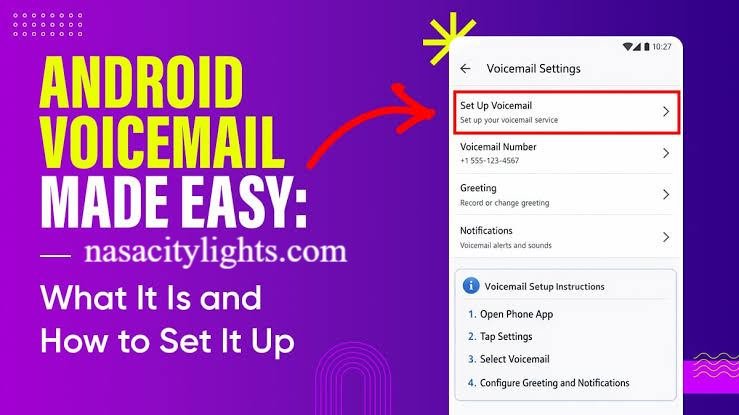
How to Set Up Voicemail on Android Using Visual Voicemail
Visual voicemail provides a convenient way to manage recorded messages without calling a voicemail number every time. When supported by your carrier and phone, messages appear in a list inside the Phone app or a dedicated voicemail application. You can often select a message, play it, and delete it directly from the screen.
To check whether the feature is available, open the Phone app and tap the three-dot menu. Select Settings, then look for Voicemail or Visual Voicemail. Depending on your device, you may see a separate Voicemail tab near the bottom of the screen. Enable the feature if an appropriate option appears, then follow any on-screen instructions.
Visual voicemail availability varies by carrier, plan, phone model, and region. If the option is missing, it does not necessarily mean your phone cannot receive voicemail. Your carrier might require activation, a compatible application, or a supported service plan. Traditional voicemail through the dial pad may still work even when visual voicemail is unavailable.
How to Set Up Voicemail on a Samsung Android Phone
Samsung Galaxy phones generally provide voicemail access through the Samsung Phone app. Although the menu layout can vary between models, the basic process is similar to that used on other Android devices. You can often start by opening the Phone app, selecting the keypad, and pressing and holding the number 1 key.
If you prefer to check the settings first, open the Phone app and tap the three-dot menu. Choose Settings and look for Voicemail or Voicemail settings. If your phone supports multiple SIM cards, confirm that you are configuring voicemail for the correct number. Follow the carrier’s prompts to create a PIN and record your greeting.
If the voicemail option does not appear on your Samsung device, check whether your carrier has activated the service. You can also restart your phone and verify that the correct SIM is selected. Menu names may differ across Galaxy models and software versions, so consult Samsung or your carrier’s official support instructions when the usual options are unavailable.
How to Set Up Voicemail on Android With Verizon, AT&T, and T-Mobile
Mobile carriers control many voicemail functions, including activation, access numbers, PIN requirements, and visual voicemail availability. For this reason, instructions that work for one network may not work for another. Verizon, AT&T, and T-Mobile customers should use the access method provided for their specific account and device.
| Mobile carrier | Recommended starting point |
|---|---|
| Verizon | Open the Phone app and use Verizon’s supported voicemail access method. Follow the prompts to configure your mailbox. |
| AT&T | Access voicemail through the Phone app or the method provided by AT&T, then follow the activation instructions. |
| T-Mobile | Use the supported voicemail shortcut or carrier instructions to create your PIN and greeting. |
| Cricket Wireless | Check Cricket’s voicemail instructions and confirm that the service is active on your account. |
During setup, you may be asked to create a PIN, record your name, and select a standard or personalized greeting. If the service is not available, confirm that your account is active and that voicemail is included or enabled. Carrier procedures can change, so use the official support website for the latest instructions rather than relying on an access number intended for another network.
How to Set Up Voicemail on Android Without a Password
Some users want to access voicemail without entering a PIN every time. However, the ability to remove or change password requirements depends on the carrier and voicemail service. Certain systems allow simplified access from the user’s own phone, while others require a PIN to protect private messages from unauthorized access.
If you have forgotten your existing voicemail password, use your carrier’s official PIN-reset procedure. You may be able to reset it through your online account, the carrier’s application, an automated service, or customer support. After resetting the PIN, reconnect to voicemail and follow any instructions needed to regain access.
Avoid attempting to bypass security protections or using unofficial tools that claim to unlock voicemail accounts. A PIN helps protect personal information that callers may leave in recorded messages. If your carrier permits PIN-free access, review its security guidance before changing the setting. If it does not, keeping a secure PIN is the safest option.
How to Change Your Voicemail Greeting on Android
A voicemail greeting tells callers what to do when you cannot answer. A clear, friendly message helps people recognize that they have reached the correct person and encourages them to leave useful information. You can usually record a custom greeting after activating voicemail or change it later through your carrier’s voicemail menu.
To update your greeting, call your voicemail service using the Phone app or open the supported visual voicemail interface. Listen for an option such as Greeting, Personal Options, or Mailbox Settings. Follow the recorded instructions to record a new message, review it, and save it. Some systems use the pound or hash key to finish recording, but the exact controls vary by carrier.
Keep your greeting short and easy to understand. For example, you could say, “Hi, you’ve reached my phone. I can’t answer right now, so please leave your name and a message after the tone.” If you use your phone for work, consider a more professional greeting. Call your number afterward to confirm that the new recording plays correctly.
How to Check Voicemail Messages on Android
After activation, you can retrieve voicemail through a traditional phone call or visual voicemail, depending on your carrier. With traditional voicemail, open the Phone app and press and hold the number 1 key, or dial the designated voicemail number. Enter your PIN if requested, then follow the audio prompts to hear new or saved messages.
With visual voicemail, open the Voicemail tab or supported voicemail application. Your messages may appear with details such as the caller’s number, the date, and the message duration. Depending on the service, you can play, replay, save, or delete messages without navigating an automated menu. Some services also provide voicemail transcription, but availability and accuracy can vary.
If new messages do not appear, check your cellular connection and voicemail notifications. Confirm that the correct SIM is selected if your device uses dual SIMs. If the service still fails to retrieve messages, contact your carrier to verify that voicemail is active and that your mailbox is functioning correctly.
Common Android Voicemail Problems and How to Fix Them
Voicemail setup is usually straightforward, but problems can occur because of incorrect settings, carrier restrictions, or temporary network issues. If the service does not work immediately, identify the specific problem before changing multiple settings. Simple checks can often restore access without requiring a factory reset or complicated troubleshooting.
Here are common problems and practical solutions:
- Holding 1 does not work: Check whether your carrier uses a different voicemail access number.
- Voicemail settings are missing: Confirm carrier support and look for the settings in the Phone app.
- The PIN is rejected: Use the official password-reset procedure provided by your carrier.
- Notifications are not appearing: Review notification permissions and voicemail settings.
- Visual voicemail will not load: Check your data connection and whether the feature is supported by your plan.
- Callers cannot leave messages: Contact your carrier to check mailbox activation and service settings.
Restarting your phone may help resolve temporary software or network issues. You can also install available system and Phone app updates. If these steps do not work, contact your carrier because activation, mailbox limits, and PIN restrictions are often controlled by the network rather than the phone itself.

Conclusion
Learning how to set up voicemail on Android can help you stay connected when you cannot answer calls. For most users, the quickest method is to open the Phone app, press and hold the number 1 key, and follow the carrier’s automated instructions. You may need to create a PIN, record your name, and choose a personal greeting before the mailbox is ready.
Visual voicemail offers another convenient option when your carrier and device support it. Samsung Galaxy users and customers of Verizon, AT&T, T-Mobile, and Cricket Wireless should check their specific instructions because activation methods can differ. After setup, test the greeting and retrieve a sample message to confirm everything works. If you encounter problems, check the phone settings first and contact your carrier when activation or account access needs attention.
Frequently Asked Questions
How do I activate voicemail on Adroid?
Open the Phone app, press and hold 1 on the keypad, and follow your carrier’s instructions to activate voicemail.
How do I set up voicemail on a Samsung phone?
Open the Samsung Phone app, press and hold 1, or check Settings for voicemail options and follow your carrier’s setup prompts.
Can I set up voicemail on Android without a password?
Some carriers offer simplified access, but many require a PIN; check your carrier’s rules or official PIN-reset options.
Why does holding 1 not open my voicemail?
Your carrier may use a different access number, or voicemail may not be activated on your account.
How do I set up voicemail with Verizon?
Use Verizon’s supported voicemail access method and follow the automated instructions to configure your mailbox and greeting.
How do I change my voicemail greeting on Android?
Call your voicemail service or open the supported voicemail interface, select the greeting settings, and record and save a new message.
Why is visual voicemail missing from my Android phone?
Your carrier, service plan, device, or region may not support visual voicemail, or the feature may need activation.
Does voicemail work on every Android phone?
Most Android phones can use carrier voicemail, but available features depend on the carrier, account, device, and region.
Author Name: Hamid Ali
Email: johanharwen314@gmail.com
Also Read: