
Microsoft Authenticator: Setup, Passkeys, and Security Guide (2026)
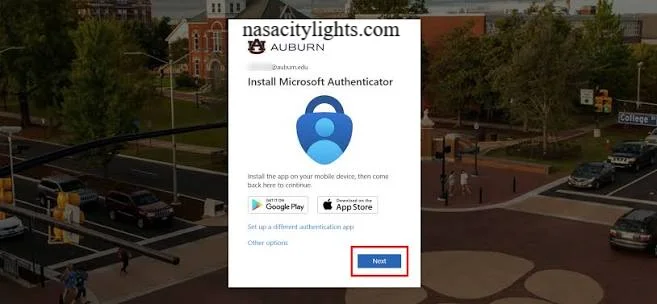
Microsoft Authenticator is a free mobile app that verifies your identity when you sign in, so a stolen password alone can’t unlock your account. It approves sign-in requests, generates one-time codes, and stores passkeys for passwordless login. It works for personal Microsoft accounts, work or school accounts, and many non-Microsoft services.
The app has changed over the past year, and a lot of online guides still describe the old version. Here is what it does today, how to set it up, and how to fix it when it misbehaves.
What Is Microsoft Authenticator and What Is It Used For?
Microsoft Authenticator is an authentication app for iOS and Android. It acts as a second step after your password, which is the core idea behind multi-factor authentication (MFA) and two-factor authentication (2FA). Because the second factor lives on a device you own, someone who steals your password still can’t get in.
People use it for three main things:
- Approving sign-ins with a tap, a number match, and often a fingerprint, face scan, or PIN.
- Generating time-based codes for Microsoft and third-party accounts.
- Passwordless sign-in and passkeys, so you may never type a password at all.
One thing has changed. Microsoft ended password autofill in Authenticator in mid-August 2025. Saved passwords and addresses are no longer accessible in the app, but they sync to your Microsoft account and remain available in Microsoft Edge. Authenticator is now an identity verification tool, not a password manager. If an older tutorial tells you to store passwords in it, that advice is out of date.
How Does Microsoft Authenticator Work?
When you sign in, the service sends a request to the app on your phone, and you prove it’s really you by approving it. The app uses cryptographic keys tied to your device, so the approval can’t be reused elsewhere.
A typical sign-in goes like this:
- You enter your username (and password, if you still use one).
- The app on your phone receives a notification.
- The sign-in screen shows a two-digit number, and you type it into the app.
- You confirm with your fingerprint, face, or device PIN.
- The service lets you in.
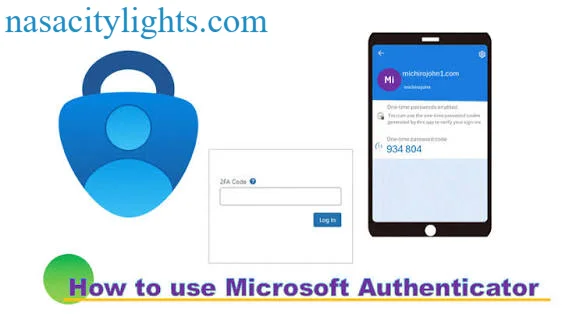
For accounts that use codes instead of push notifications, the app shows a six-digit code that refreshes about every 30 seconds. You type that code into the login page.
What Is Number Matching, and Why Does It Matter?
Number matching is the step where you enter a number shown on the sign-in screen into the app, rather than just tapping “Approve.” It defeats “MFA fatigue” attacks, where criminals spam you with approval prompts hoping you’ll tap one by accident. Microsoft’s push notifications also show context, such as the app being accessed and a location, so you can spot a request you didn’t start. If you didn’t start a sign-in, deny it and change your password.
How to Set Up Microsoft Authenticator
Download the app, sign in with your account, and add it as a verification method. Setup takes about five minutes.
Install the app
- iPhone: Open the App Store, search for “Microsoft Authenticator,” and install the app published by Microsoft Corporation.
- Android: Open Google Play, search for the same name, and confirm the publisher before installing.
Enroll a work, school, or university account
- On a computer, go to mysignins.microsoft.com/security-info and sign in.
- Select Add sign-in method, then Authenticator app.
- Follow the prompts until a QR code appears.
- On your phone, open the app, tap +, choose Work or school account, and scan the QR code.
- Approve the test notification to finish.
Enroll a personal Microsoft account
Open the app, tap +, choose Personal account, and sign in. Then turn on two-step verification at account.microsoft.com/security if it isn’t already on.
Add other accounts (Google, GitHub, and similar)
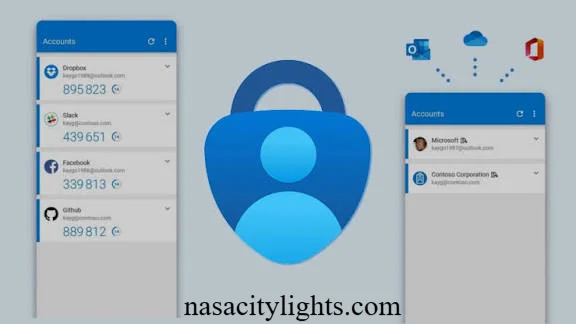
Tap +, choose Other account, and scan the QR code that service displays in its security settings. The app will then show a rotating code for that account.
Before you finish, save the recovery codes or backup method each service offers. They matter if your phone is lost (see the FAQ below).
How Do You Sign In Without a Password?
Passwordless sign-in replaces your password with something you have (your phone) and something you are or know (your fingerprint, face, or PIN). It is more secure because there is no password to phish, reuse, or leak in a breach.
To enable it for a personal Microsoft account:
- Make sure the account is added to the app.
- Go to your Microsoft account’s Security settings and open Advanced security options.
- Turn on Passwordless account, and approve the prompt in the app.
You can also use biometrics for approvals. On your phone, enable fingerprint or face unlock in the app’s settings, and set a device PIN as the fallback. A PIN works well as a backup when a fingerprint reader fails or your hands are wet.
How Do Passkeys Work?
A passkey is a pair of cryptographic keys. The public key sits on the service, and the private key stays on your device and never leaves it. When you sign in, your device proves it holds the private key after you unlock it with a fingerprint, face, or PIN. Nothing reusable crosses the network, so a fake login page has nothing to steal.
Authenticator still supports passkeys for work or school accounts. Microsoft’s support page says that if you use passkeys for a work or school account, Authenticator must stay enabled as your passkey provider in your phone’s settings, because turning it off also disables those passkeys.
Is Microsoft Authenticator Secure?
Yes. It is considered a strong choice, far safer than SMS codes, though not as strong as a hardware security key for the highest-risk users.
Why it holds up:
- Sign-in approvals are tied to your device and protected by biometrics or a PIN.
- Number matching and sign-in context reduce accidental approvals.
- Passkeys resist phishing because they only work on the real site.
Its limits are worth knowing:
- If someone has your unlocked phone, they have a path to your approvals, so use a strong screen lock.
- You can still be tricked into entering a code on a fake site if you use code-based verification instead of passkeys.
- It’s tied to your phone, so a backup method is essential.
Microsoft is also moving away from text-message verification. One industry summary reports that, from September 1, 2026, passkeys become the default sign-in experience for Microsoft 365 users, and on February 1, 2027, Microsoft retires its own SMS and voice-call MFA service. Treat those dates as reported by that source and confirm them in your admin center or Microsoft’s documentation. Anyone still relying on text-message codes should switch to Authenticator or a passkey now. cscm
Microsoft Authenticator vs. Duo Security: What’s the Difference?
Duo Security (owned by Cisco) is an MFA platform sold to organizations, while Microsoft Authenticator is a free app that works best inside the Microsoft ecosystem. They overlap in function, but they are built differently.
| Factor | Microsoft Authenticator | Duo Security |
|---|---|---|
| Owner | Microsoft | Cisco |
| Best fit | Microsoft 365, Entra ID, personal Microsoft accounts | Mixed environments, VPNs, legacy apps |
| Cost to user | Free app | Licensed by the organization |
| Passwordless/passkeys | Supported | Supported (varies by plan) |
| Central admin | Via Microsoft Entra | Via Duo Admin Panel |
Universities and companies often move from Duo to Authenticator to consolidate on Microsoft Entra and cut licensing costs. If your institution is making that switch, expect this sequence: your IT team announces a cutoff date, you enroll Authenticator through the Security info page, you test it, and then your Duo enrollment is removed. Follow your own IT team’s instructions, since the exact process varies by institution. Authenticator can protect university accounts because it ties student and staff sign-ins to a verified device and supports single sign-on (SSO), so one secure login covers many campus services.
How Do You Troubleshoot Microsoft Authenticator Login Problems?
Start with the basics: check your phone’s time, notifications, and internet connection. Most failures come from one of these:
- No notification arrives: Allow notifications for the app, turn off battery optimization for it on Android, and open the app manually to trigger a refresh.
- Codes are rejected: Make sure your phone’s clock is set to automatic. Even small time drift breaks time-based codes.
- The number doesn’t match: Deny the request and start a fresh sign-in. Don’t approve anything you didn’t start.
- Wrong or missing account: Remove and re-add the account through the Security info page.
- Passkeys stopped working: Confirm Authenticator is still enabled as your passkey provider in your phone’s settings.
- New phone: Use the app’s backup and recovery option before wiping your old phone, or ask your admin to reset your methods.
What Happens If You Lose Your Phone?
You can still get back in through a backup method, but you should act quickly. Use a recovery code, a second verification method, or a security key if you set one up. For a work or school account, contact your IT help desk, which can clear your registered methods so you can enroll again. For a personal account, use Microsoft’s account recovery process. Then remove the lost device from your account’s security settings.
Frequently Asked Questions
Microsoft Authenticator login: how does it work?
You enter your username, then approve a notification or type a code from the app. Many accounts also ask you to enter a number shown on screen and confirm with your fingerprint, face, or PIN.
Can I use Microsoft Authenticator on a PC?
There is no desktop version of the app. It runs on your phone, and you use your computer’s browser for the sign-in page. Approve the request on your phone, or type the code from your phone into the PC.
How do I use the Microsoft Authenticator QR code?
During setup, your account’s Security info page shows a QR code. In the app, tap +, choose the account type, and scan it with your phone camera. The account is then linked.
Is there a Microsoft Authenticator online version?
No. There is no web-based Authenticator. You manage your methods online at mysignins.microsoft.com/security-info for work or school accounts, or account.microsoft.com/security for personal accounts.
Where can I download the Microsoft Authenticator app?
Download it from the Apple App Store on iPhone or Google Play on Android. Check that the publisher is Microsoft Corporation to avoid fake lookalike apps.
Where can I get Microsoft Authenticator help?
Start with Microsoft Support’s Authenticator pages. If it’s a work or school account, your IT help desk can reset your verification methods, which Microsoft cannot do on your behalf.
What is the Microsoft Authenticator code?
It is a six-digit one-time code that refreshes about every 30 seconds. You type it into a login page as your second factor when a push approval isn’t used.
How do I do a Microsoft Authenticator login on a PC?
Go to the sign-in page in your PC’s browser and enter your username. Then open Authenticator on your phone, enter the displayed number or the six-digit code, and confirm with your biometrics or PIN.
Author Bio: Hamid Ali is a technology writer covering cybersecurity, authentication tools, AI, and digital privacy. He creates research-based guides to help readers understand security features, protect their accounts, and make informed technology decisions.
Author Name: Hamid Ali
Email: johanharwen314@gmail.com
Also read: