
Clear Cache Android: Easy Steps to Free Up Space and Fix Apps

If apps are loading slowly, websites are displaying incorrectly, or your phone is running low on storage, clearing cached files may help. Android apps and browsers save temporary data to make frequently used content load faster. Over time, these files can take up space or occasionally contribute to app problems. Learning how to clear cache android settings safely can help you troubleshoot common issues without unnecessarily deleting personal information.
The process is straightforward, but the correct steps depend on whether you want to clear an individual app’s cache, remove cached files from Google Chrome, or troubleshoot a particular Android feature. This guide explains each method, including Samsung Galaxy phones, Android tablets, Instagram, Facebook, Google apps, and Android Auto. You will also learn the difference between clearing cache and clearing data so you can choose the right option for your device.
What Does Clearing Cache on Android Mean?
A cache is a collection of temporary files that an app or browser saves to improve performance. These files might include website images, thumbnails, previews, and other information that helps content appear faster when you open it again. Instead of downloading everything repeatedly, the app can reuse available cached files. This makes caching useful, and it is not something you normally need to remove just because it exists.
However, cached files can accumulate, occupy storage, or become outdated. For example, an app might continue displaying an old image or struggle to load certain content. Clearing its cache removes temporary files so the app can create fresh ones when needed. The files are generally safe to remove, although an app may load more slowly the next time you open it while rebuilding its cache.
Why Should You Clear Cache on Android?
Clearing cache can be helpful when an app freezes, displays outdated content, or repeatedly encounters loading problems. It may also free up some storage, especially if a frequently used app has accumulated a substantial amount of temporary data. If a website looks different from its current version or a social media app behaves unexpectedly, removing cached files is a reasonable troubleshooting step before trying more disruptive solutions.
However, clearing cache is not a guaranteed way to speed up your entire phone. Android manages temporary files automatically, and many cached files are designed to improve everyday performance. If your device remains slow, check available storage, update problematic apps, restart your phone, and look for applications consuming excessive resources. Use cache clearing when it addresses a specific problem rather than treating it as a daily maintenance requirement.
How to Clear Cache on Android Step by Step
The easiest way to clear an app’s cache is through your phone’s Settings menu. The exact labels vary between manufacturers and Android versions, but the general process is similar across most devices. You can repeat these steps for any app that appears to be using excessive temporary storage or experiencing minor glitches.
- Open Settings on your Android phone.
- Tap Apps, Applications, or Apps and notifications.
- Select See all apps if necessary.
- Choose the app you want to troubleshoot.
- Tap Storage, Storage and cache, or a similar option.
- Select Clear cache.
- Return to the app and check whether the problem has improved.
Pay close attention to the available buttons. Clear cache removes temporary files, while Clear data or Clear storage can reset the application and remove locally stored information. If your goal is to fix a minor glitch or reclaim temporary storage, start with Clear cache. Menu names and available options may differ depending on your phone, operating system, and application.
How to Clear Cache on a Samsung Galaxy Phone
Samsung Galaxy devices provide app storage controls through Settings. On many models, you can open Settings, select Apps, choose the relevant application, and tap Storage. From there, select Clear cache. This is useful when a particular app is using more space than expected or is not displaying content correctly. You do not need to clear the cache of every application on your phone.
Samsung also provides device care tools on supported models. Depending on your software version, Battery and device care may include storage management and optimization options. These tools can help you identify unnecessary files, but they are not identical to clearing every app’s cache. If you cannot find the expected option, use the Settings search bar to look for the app or its storage settings.
How to Clear Cache on Android Tablets and Other Phones
Android tablets generally use the same app-specific method as Android phones. Open Settings, locate Apps, select the application, and look for Storage or Storage and cache. This works on many devices from Google, Motorola, Xiaomi, and other manufacturers, although the interface may look different. If the menu is difficult to find, search Settings for the application’s name and open its information page.
Older devices may use labels such as Apps & notifications, while newer versions may organize application controls differently. The important step is to open the storage settings for the individual app and choose Clear cache. Avoid following instructions for a different model’s recovery menu unless you understand exactly what the option does. For most everyday app problems, you do not need to enter recovery mode or perform a system-level reset.
How to Clear Cache in Google Chrome on Android
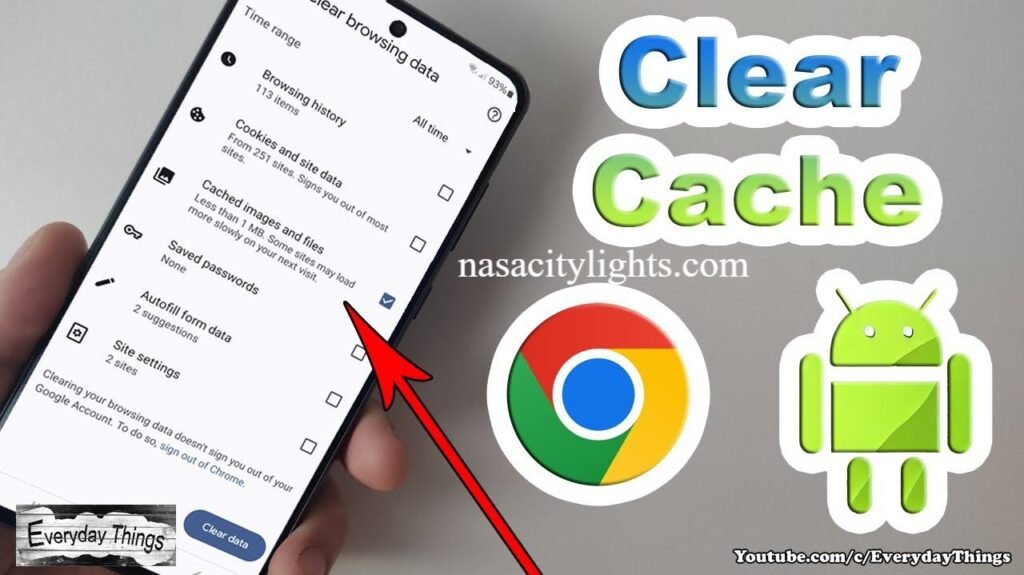
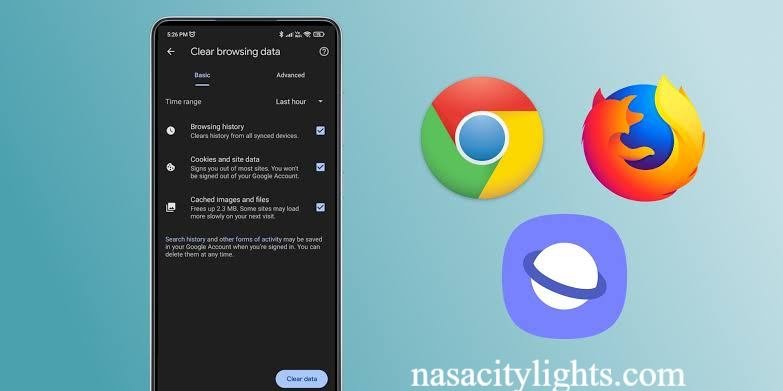
Chrome saves cached images and files to help websites load faster on repeat visits. If a page looks outdated, fails to display correctly, or continues showing an old version, clearing this browser cache may help. Open Chrome on your Android device, tap the three-dot menu, and select History or the browsing data option. Depending on your version, you may find the control under Settings and then Privacy and security.
Choose the appropriate time range, such as All time, and select Cached images and files. Review the other selected categories before proceeding, then tap Delete data or Clear data. If you only want to remove cached files, leave browsing history and cookies unchecked. Removing cookies can sign you out of websites, while cached images and files are temporary copies that websites can download again when needed.
How to Clear Cache for Instagram, Facebook, and Google Apps
Social media and Google apps can store temporary files as you browse feeds, view images, search for information, or use maps. If one of these apps develops a loading issue, clear its cache individually rather than resetting your entire phone. Open Settings, select Apps, choose Instagram, Facebook, Google, Gmail, or another relevant application, and navigate to its storage controls. Tap Clear cache if the option is available.
On Android, Instagram and Facebook generally rely on the system settings for clearing their app caches. Their in-app menus may not provide a dedicated cache-clearing button. The same general approach applies to many Google apps, although each application stores different kinds of information. If a problem continues, update the app or restart your device before considering Clear data or reinstalling. For apps such as Grok, available troubleshooting options may differ between Android and iOS.
How to Clear Cache in Android Auto
Android Auto can experience connection, display, or loading problems for several reasons, including outdated software, permissions, cable issues, or temporary app errors. To clear its cache, open Settings on your phone, select Apps, locate Android Auto, and open its Storage section. Tap Clear cache if the option is available, then reconnect your phone to your vehicle and check whether the issue has improved.
If the problem continues, restart your phone, check for Android Auto updates, and inspect the USB cable or wireless connection. You can also review relevant permissions and reconnect the phone to the car. Clearing cache may help with certain software glitches, but it will not fix every connection problem. Avoid clearing app data unless you are prepared to review the application’s settings and reconnect devices if necessary.
Clear Cache vs. Clear Data on Android
Understanding these two options helps prevent accidental loss of locally stored information. Clearing cache removes temporary files that an application can generally recreate. Clearing data, sometimes called Clear storage, is more extensive and can reset the app to its initial state. Depending on the application, this may remove preferences, downloaded information stored locally, saved sessions, or other app-specific data.
| Feature | Clear cache | Clear data or storage |
|---|---|---|
| Removes temporary cached files | Yes | Usually |
| Resets app settings | Generally no | Often |
| May remove locally stored information | Usually no | Yes |
| May require signing in again | Usually no | Often |
| Best first step for minor glitches | Usually | Only when appropriate |
If you want to troubleshoot an app without disrupting your existing setup, choose Clear cache first. Before clearing data, make sure important information is synced or backed up and that you know your login details. The precise effects depend on the app, so check its documentation if it stores important information locally.

Common Problems When Clearing Cache on Android
Sometimes the Clear cache button is missing, storage usage does not change much, or the app continues to crash after the cache has been removed. These outcomes do not necessarily mean something is wrong. An app may have very little cached data, Android may have already removed temporary files, or the underlying problem may be unrelated to its cache. Check the app’s storage screen and confirm that you selected the correct application.
If an app continues to misbehave, try these troubleshooting steps:
- Restart your phone and reopen the affected app.
- Check for app updates in Google Play.
- Install available Android system updates when appropriate.
- Check your available storage and remove unnecessary downloads.
- Review app permissions and internet connectivity.
- Consider reinstalling the app if other methods fail and your important information is backed up.
Avoid unfamiliar cleaning applications that request unnecessary permissions or promise dramatic performance improvements. Built-in Android settings are usually sufficient for clearing an individual app’s cache. Also, do not assume that wiping a system cache partition is a standard solution for modern Android phones; recovery options vary by manufacturer and model, and that procedure is rarely necessary for ordinary app troubleshooting.
Tips for Managing Android Storage and Performance
Good storage habits can help prevent recurring problems. Review your phone’s storage settings occasionally to identify large apps, downloads, and media files you no longer need. Remove unwanted files carefully, back up important photos, and use built-in storage management features when available. If a particular app consistently consumes excessive space, check whether it stores offline videos, downloaded maps, or other content that can be managed directly within the app.
You should also keep your apps updated and restart your phone when troubleshooting persistent issues. Clear cache when an app behaves unexpectedly or temporary files are taking up meaningful space, rather than following a rigid cleaning schedule. Cached files often serve a useful purpose, and deleting them repeatedly can make some content take longer to load until it is cached again.
Conclusion
Learning how to clear cache android settings safely gives you a practical way to troubleshoot apps, resolve some website display issues, and reclaim temporary storage. For most problems, open Settings, choose the affected app, navigate to Storage, and tap Clear cache. Use Chrome’s browsing data settings when the problem involves websites, and follow the relevant app-specific steps for Samsung Galaxy, Instagram, Facebook, Google apps, or Android Auto.
Remember that clearing cache is different from clearing app data. Start with the less disruptive option, check whether the problem improves, and try additional troubleshooting only when necessary. Android already manages cached files automatically, so there is no need to clear them constantly. A targeted approach is safer, simpler, and more useful for maintaining your phone’s everyday performance.
Frequently Asked Questions
How do I clear cache on Android?
Open Settings, select Apps, choose an application, tap Storage or Storage and cache, and select Clear cache.
Does clearing cache delete photos or personal files?
Clearing an app’s cache generally does not delete personal photos or documents, but check the selected option carefully.
How often should I clear cache on my Android phone?
There is no fixed schedule; clear cache when troubleshooting an app or managing storage.
How do I clear cache on a Samsung Galaxy phone?
Open Settings, tap Apps, select an app, choose Storage, and tap Clear cache.
How do I clear cache in Chrome on Android?
Open Chrome, access browsing data settings, select Cached images and files, and confirm the deletion.
What is the difference between Clear cache and Clear data?
Clear cache removes temporary files, while Clear data can reset an app and remove locally stored information.
Can clearing cache make my Android phone faster?
It may resolve certain app issues, but it does not guarantee faster performance across the entire phone.
Why can’t I find the Clear cache option on Android?
Menu names vary by device and app, so check the selected app’s storage settings or search within Settings.
Author Name: hamid Ali
Email: johanharwen314@gmail.com
Also Read: