
How to Clear Cache Firefox: Desktop, Android & iOS (2026 Guide)
You updated your website, but Firefox still shows the old version. Or a page loads with broken layouts, or a login loop keeps sending you back to the sign-in screen. In many of these cases, the fix is the same: delete the stored copies of web content that Firefox saved on your device.
This guide covers every common scenario: Windows, Mac, Android, iPhone and iPad, per-site clearing, keeping your cookies, and automating the process. Mozilla occasionally renames menu items between releases, so if a label looks slightly different on your version, look for the closest match.

What Is the Firefox Cache?
Short answer: The Firefox cache is a folder of temporary files, such as images, scripts, and stylesheets, that Firefox saves so websites load faster on repeat visits.
When you open a page, Firefox downloads its components. Instead of fetching the same logo or font every time, the browser stores them locally and reuses them. This is what makes returning to a site feel quicker.
Cached files are not the same as your history or passwords. They are only the building blocks of web pages, which is why deleting them rarely costs you anything beyond a slightly slower first load afterward.
Why Would You Need to Clear It?
Short answer: You clear the cache to fix outdated pages, resolve display glitches, free up disk space, and reduce the amount of browsing data stored on your device.
Common reasons include:
- Stale content: A site has changed, but Firefox keeps serving an older saved copy.
- Website loading issues: Broken layouts, missing images, or buttons that don’t respond often come from mismatched cached files.
- Troubleshooting: Support teams routinely ask for a cache clear as a first diagnostic step.
- Disk space: Cache can grow to several hundred megabytes or more on heavily used profiles.
- Privacy: On a shared computer, cached files can reveal which sites were visited.
Clearing the cache is not a performance miracle. A healthy cache speeds up browsing, so clear it when something is wrong, not as a daily ritual.
How to Clear Cache in Firefox on Desktop
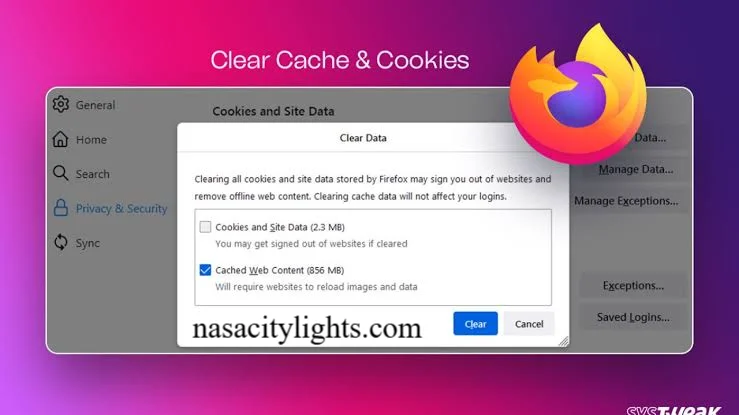
Short answer: Press Ctrl+Shift+Delete (Windows) or Cmd+Shift+Delete (Mac), choose “Cached web content,” and confirm.
Using the keyboard shortcut
- Open Firefox.
- Press Ctrl+Shift+Delete on Windows or Cmd+Shift+Delete on Mac.
- Set the time range to Everything for a full clear.
- Check Cached web content.
- Uncheck Cookies and site data if you want to stay signed in.
- Click OK (or Clear on some versions).
Using Firefox Settings
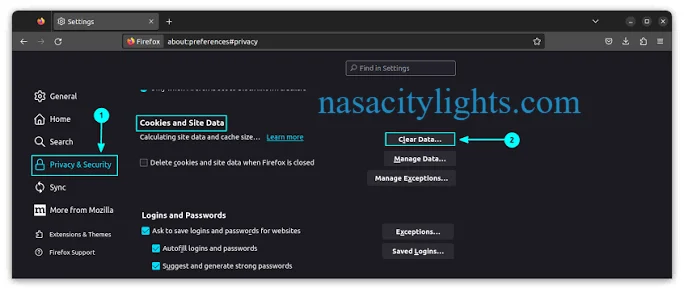
- Click the menu button (three horizontal lines) and open Settings (called Preferences on some Mac versions).
- Select Privacy & Security.
- Scroll to Cookies and Site Data and click Clear Data.
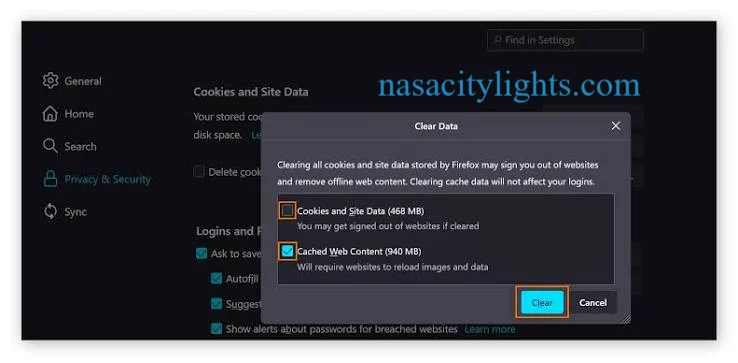
- Tick Cached Web Content and click Clear.
The steps are identical on Windows 10, Windows 11, and macOS. Only the menu naming differs slightly.
How to Clear Firefox Cache Without Deleting Cookies
Short answer: In the Clear Data window, check only “Cached web content” and leave “Cookies and site data” unchecked.
This distinction matters because cookies keep you logged in and remember preferences, while cache files are disposable. If you use the Ctrl+Shift+Delete dialog, the history options let you pick exactly what goes. Clearing cache alone will not sign you out of your accounts.
Firefox Cache vs. Cookies: What’s the Difference?
| Feature | Cache | Cookies |
|---|---|---|
| What it stores | Images, scripts, stylesheets | Login tokens, preferences, tracking identifiers |
| Main purpose | Faster page loading | Remembering who you are |
| Effect of deleting | Pages reload slowly once | You get signed out |
| Privacy impact | Low to moderate | Higher |
How to Clear Cache in Firefox on Android
Short answer: Open the menu, go to Settings, choose Delete browsing data, tick “Cached images and files,” and tap Delete.
- Tap the three-dot menu in Firefox.
- Tap Settings.
- Select Delete browsing data.
- Check Cached images and files. Leave cookies unchecked if you want to stay logged in.
- Tap Delete browsing data and confirm.
Label wording can vary by app version (older builds say “Clear private data”). Clearing the Firefox cache on an Android phone follows the same pattern on tablets.
How to Clear Cache in Firefox on iPhone and iPad
Short answer: Open the menu, go to Settings, select Data Management, enable the Cache toggle, and tap Clear Private Data.
- Tap the menu button in Firefox.
- Open Settings.
- Tap Data Management.
- Turn on Cache (and any other data types you want to remove).
- Tap Clear Private Data and confirm.
The iPad steps are the same. Because the layout is larger, the menu may appear in a different corner of the screen, but the path is unchanged. Note that Mozilla has been redesigning parts of the iOS app, so some versions may expose this under a slightly different label.
How to Clear Cache for a Specific Website
Short answer: Use a hard refresh (Ctrl+F5 or Ctrl+Shift+R; Cmd+Shift+R on Mac) to bypass the cache for one page, or remove one site’s data through Settings.
For a single stubborn page:
- Hard refresh: This forces Firefox to re-download the page’s files without wiping your whole cache.
For a site’s stored data:
- Go to Settings > Privacy & Security > Cookies and Site Data.
- Click Manage Data.
- Search for the domain, select it, and click Remove Selected, then Save Changes.
Be aware that this removes that site’s cookies and stored data too, so you’ll likely need to sign in again.
How to Clear Cache Automatically
Short answer: Set Firefox to use custom history settings and clear history when it closes.
- Open Settings > Privacy & Security.
- Under History, choose Firefox will: Use custom settings for history.
- Check Clear history when Firefox closes.
- Click Settings next to it and tick Cache (plus anything else you want removed).
This is useful on shared or public computers. Alternatively, Private Browsing windows (Ctrl+Shift+P or Cmd+Shift+P) discard session data, including cookies and history, when closed. Keep in mind that automatic clearing means every session starts with a cold cache, so sites will load a little slower.
What About the DNS Cache?
Short answer: The DNS cache is separate from the web cache. Firefox keeps its own, and you can clear it from the about:networking page.
DNS caching stores the IP addresses of sites you’ve visited so lookups are faster. If a site has moved servers and you still can’t reach it, try this:
- Type about:networking#dns in the address bar.
- Click Clear DNS Cache.
Your operating system keeps its own DNS cache too, which is cleared through system tools rather than Firefox.
What Happens After You Clear the Cache?
Short answer: Websites load slightly slower the first time, then speed up as the cache rebuilds.
You will not lose bookmarks, saved passwords, or open tabs. If you also cleared cookies, expect to log in again and re-accept cookie banners. Free disk space increases by the size of the deleted cache.
How Often Should You Clear It?
Short answer: Only when you have a reason: a loading problem, a privacy concern, or low storage.
My practical rule: if everything works, leave it alone. A cache is doing a useful job. Clear it when a site behaves oddly, after a web design change you need to preview, or when handing a device to someone else. Heavy users on small-storage laptops or phones might do it every few months.
Does Clearing the Cache Improve Privacy?
Short answer: Slightly. It removes locally stored copies of site content, but it does not hide your activity from websites or networks.
Cached files can reveal browsing habits to anyone with access to your device. There is also a lesser-known technique called cache snooping, where a site or attacker infers whether you’ve visited certain resources based on load behavior, though modern browsers have added protections against cross-site cache probing. For real protection, combine good habits:
- Use Firefox’s Enhanced Tracking Protection and review your privacy settings.
- Stick to HTTPS sites, which encrypt web traffic between you and the site.
- On public Wi-Fi, a reputable VPN adds another layer of encryption, but it does not clear your cache or replace secure browsing practices.
Common Firefox Cache Problems and Fixes
| Problem | Likely cause | What to try |
|---|---|---|
| Old version of a site appears | Outdated cached files | Hard refresh, then clear cached web content |
| Page layout broken | Mismatched CSS or scripts | Clear cache for that site |
| Constant login loops | Corrupt cookies | Remove site data for that domain |
| Site unreachable after server move | Stale DNS cache | Clear the DNS cache at about:networking#dns |
| Firefox feels sluggish | Many causes | Clear cache, then check extensions and update Firefox |
If none of this works, try starting Firefox in Troubleshoot Mode from the Help menu to rule out extensions.
Frequently Asked Questions
What is the clear cache Firefox shortcut?
Press Ctrl+Shift+Delete on Windows or Cmd+Shift+Delete on Mac to open the Clear Recent History window. For a one-page refresh that bypasses the cache, use Ctrl+F5 or Ctrl+Shift+R.
Is there a Firefox extension to clear the cache?
Yes. Several cache-clearing add-ons exist on Mozilla’s add-ons site (addons.mozilla.org). Firefox’s built-in tools cover nearly every need, so only install an extension if you want one-click access, and check its permissions and reviews first.
How do I clear the cache in Firefox on Windows 10?
Open Firefox, press Ctrl+Shift+Delete, choose a time range, tick Cached web content, and click OK. You can also go to Settings > Privacy & Security > Cookies and Site Data > Clear Data.
How do I clear the cache in Firefox on Windows 11?
The process is identical to Windows 10. Use Ctrl+Shift+Delete or the Privacy & Security page in Settings and select Cached Web Content.
How do I clear the Firefox cache on a Mac?
Press Cmd+Shift+Delete, or open Firefox > Settings (or Preferences) > Privacy & Security > Clear Data. Select Cached Web Content and confirm.
How do I clear the Firefox cache on mobile?
Open the Firefox app’s menu, go to Settings, and use Delete browsing data (Android) or Data Management (iOS). Select the cache option and confirm.
How do I clear the cache in Firefox on Android?
Tap the three-dot menu > Settings > Delete browsing data, check Cached images and files, then tap Delete browsing data.
How do I clear the Firefox cache on an iPad?
Open the menu > Settings > Data Management, switch on Cache, and tap Clear Private Data. The steps match the iPhone app.
Final Thoughts
Clearing the Firefox cache is one of the quickest ways to fix stubborn display problems, and it is safe when you leave cookies alone. Use the keyboard shortcut for speed, a hard refresh for a single page, and the automatic settings only if privacy matters more to you than loading speed. If a problem survives all of that, the cause is probably an extension, a network issue, or the website itself.
Author Bio: Hamid Ali is a technology writer covering browsers, cybersecurity, privacy, AI tools, and everyday digital solutions. He creates practical, research-based guides that help readers troubleshoot technology and use online tools more effectively.
Author Name: Hamid Ali
Email: johanharwen314@gmail.com
Also Read: