
How to Fix Slow Startup on Windows 10 and 11
Introduction About: How to Fix Slow Startup on Windows
Most slow startups come from too many startup apps, an aging hard drive, outdated drivers or damaged system files. Start in Task Manager by disabling high-impact startup apps, then check disk health, update drivers and Windows, and repair system files with DISM and SFC. If your PC still has a mechanical hard drive, an SSD upgrade is the single biggest fix.
Last updated September 21, 2026. Steps apply to Windows 11 and Windows 10. Where menus differ, both are noted.
A note on Windows 10: Microsoft ended standard support for Windows 10 on October 14, 2025. Per reporting on a Microsoft statement, the consumer Extended Security Updates (ESU) program now runs through October 12, 2027, a year longer than first planned. Performance troubleshooting still works the same, but if your PC is Windows 11 compatible, upgrading is worth considering.
Why Is My Windows PC Taking So Long to Start?
Short answer: The stage where the delay happens tells you the cause. A delay before the Windows logo points at hardware or firmware. A delay after login usually points at startup apps and services.
Before changing anything, watch what happens when you boot:
| What you notice | Likely cause | Start with |
|---|---|---|
| Long black screen before the Windows logo | Failing drive, firmware issue, peripheral problem | Step 5 (disk health), unplug USB devices |
| Spinning dots for a long time | Slow drive, update or driver trouble | Steps 3, 5 and 6 |
| Desktop appears, then everything lags for minutes | Too many startup apps, drive at 100% usage | Steps 1 and 5 |
| Slow only after a shutdown, better after a restart | Fast Startup or driver conflict | Step 2 |
| Slow boot plus random crashes | Corrupted system files or failing storage | Steps 5 and 6 |
Step 1: Disable Unnecessary Startup Apps
This is the highest-payoff fix for most PCs.
- Press Ctrl + Shift + Esc to open Task Manager.
- Open Startup apps (Windows 11, left sidebar) or the Startup tab (Windows 10).
- Sort by Startup impact.
- Right-click anything you do not need at login and choose Disable.
Common offenders include chat apps, game launchers, cloud sync clients, printer utilities and updaters. Disabling an app does not uninstall it; it just stops it from launching automatically. Avoid disabling security software, touchpad drivers and anything you do not recognize until you have looked it up. You can also manage the same list in Settings > Apps > Startup.
Step 2: Test the Fast Startup Setting
Fast Startup saves part of the system state when you shut down so the next boot is quicker. It usually helps, but it can cause trouble after driver or update changes, and it means a normal shutdown is not a full restart.
- Try a Restart first. It performs a complete reboot and often clears problems that shutdown does not.
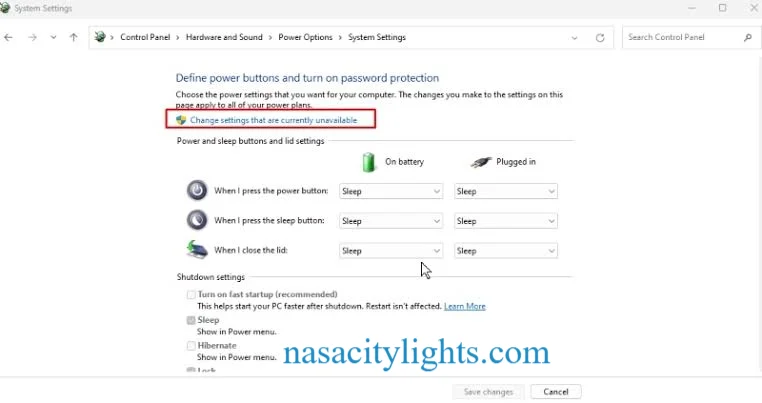
- To toggle the setting: Control Panel > Power Options > Choose what the power buttons do > Change settings that are currently unavailable, then uncheck Turn on fast startup.
Test a few boots each way and keep whichever is faster and more stable for your machine.
Step 3: Install Windows and Driver Updates
Outdated or conflicting drivers are a common cause of slow boot, especially for graphics, storage controllers and chipset drivers.
- Go to Settings > Windows Update and install pending updates, including optional driver updates.
- For laptops, get chipset, storage and BIOS/UEFI updates from the manufacturer’s support page rather than a third-party driver tool.
- If the slowdown began right after an update, check Update history and consider uninstalling the update or using a restore point.
Step 4: Scan for Malware
Malware can add hidden startup entries and consume resources.
- Open Windows Security > Virus & threat protection.
- Choose Scan options and run a Full scan.
- For persistent problems, run Microsoft Defender Antivirus (offline scan), which restarts the PC and scans outside normal Windows.
Step 5: Check Disk Health and Free Up Space
Short answer: A drive at 100% usage in Task Manager, or a nearly full drive, will slow boot. A mechanical hard drive will always boot slower than an SSD.
- Look at disk activity. In Task Manager’s Performance tab, check whether the disk sits at or near 100% after boot. If so, look in the Processes tab to see which app is responsible.
- Free space. Turn on Storage Sense in Settings > System > Storage, and use temporary files cleanup or the classic Disk Cleanup tool. Keeping meaningful free space on the system drive helps Windows update and manage its files.
- Check health. In PowerShell, run
Get-PhysicalDisk | Select FriendlyName, MediaType, HealthStatus. For deeper SMART data on an HDD or SSD, a free utility like CrystalDiskInfo can show warnings. If health shows caution or failure, back up immediately. - Optimize correctly. Use Optimize Drives for scheduled maintenance. Defragmentation helps mechanical hard drives; on SSDs, Windows uses TRIM instead, so do not manually defragment them.
- Leave the paging file alone. Virtual memory is best left on system managed unless you have a specific reason to change it.
Step 6: Repair Corrupted System Files with DISM and SFC
Damaged system files can slow boot and cause errors. Open Terminal (Admin) or Command Prompt as administrator and run these in order:
DISM repairs the component store that SFC relies on, and SFC then checks and replaces protected system files. Restart afterward and time your next boot.
Step 7: Find the Culprit with a Clean Boot and Event Viewer
Short answer: A clean boot loads Windows with only Microsoft services, so you can tell whether a third-party program is the cause.
Clean boot:
- Press Win + R, type
msconfig, and open the Services tab. - Check Hide all Microsoft services, then click Disable all.
- Disable startup items in Task Manager, restart and time the boot.
- If it is fast, re-enable services in small groups until the slowdown returns.
Event Viewer: Go to Applications and Services Logs > Microsoft > Windows > Diagnostics-Performance > Operational. Event ID 100 records boot duration, and events in the 101-110 range flag specific apps, drivers or services that slowed a boot. It is one of the most direct built-in boot diagnostics.
Advanced option: Microsoft’s Windows Performance Recorder and Windows Performance Analyzer, part of the Windows Performance Toolkit (Windows ADK), can record and analyze a full boot trace. It has a steeper learning curve, so save it for stubborn cases or IT work.
When Should You Upgrade Your Hardware?
Short answer: If your PC boots from a mechanical hard drive, upgrade to an SSD before anything else. If it is already on an SSD and still slow, look at RAM and storage health.
- SSD upgrade: Moving from a hard drive to a SATA SSD or NVMe SSD reduces boot time more than any software tweak. Clone your existing drive or do a fresh install, and back up first.
- RAM upgrade: If Task Manager shows memory constantly near full, adding RAM can help. Windows 11’s official minimum is 4 GB, but 8 GB or more is a more comfortable baseline for everyday use (my recommendation, not a Microsoft requirement).
- Old CPUs and laptops: If the machine is very old and fails Windows 11 requirements, hardware upgrades may not be worth the cost compared with replacement.
When Should You Repair, Reset or Reinstall Windows?
If the steps above do not help, escalate in this order so you lose the least data:
- System Restore: roll back to a point before the slowdown began.
- Repair upgrade: run Windows setup from within Windows using a current Windows ISO and choose to keep files and apps. This replaces system files without wiping your data.
- Reset this PC: in Settings > System > Recovery (Windows 11) or Settings > Update & Security > Recovery (Windows 10), choose to keep or remove files.
- Clean reinstall: the last resort, after backing up everything.
Test Safe Mode too. If Windows boots quickly in Safe Mode, the problem is almost always a driver or software conflict rather than hardware.
Frequently Asked Questions
Why is my PC slow to start on Windows 11?
Slow boot on Windows 11 is usually caused by too many startup apps, a drive at or near 100% usage, driver conflicts or pending updates. Open Task Manager, disable high-impact startup apps, check disk health and install Windows and driver updates.
Why is my laptop taking too long to start on Windows 10?
Laptops on Windows 10 often have a mechanical hard drive or accumulated startup programs. Disable startup apps in Task Manager, check disk usage and health, and run DISM and SFC. If the laptop uses an HDD, an SSD upgrade usually makes the biggest difference.
How do I clean up my computer to run faster on Windows 10?
Uninstall unused programs, disable startup apps, run Disk Cleanup, scan for malware with Windows Security and install updates. Use Optimize Drives on hard drives, but do not manually defragment an SSD.
How do I clean up my computer to run faster on Windows 11?
Turn on Storage Sense in Settings, delete temporary files, remove apps you do not use, disable startup apps in Task Manager, and keep Windows and drivers current. Restart regularly, since Fast Startup can keep parts of the previous session alive.
Why is my computer running slow on Windows 11?
Check Task Manager for high CPU, memory or disk usage, then identify the process responsible. Common causes are startup apps, low free storage, background sync, outdated drivers or malware. A full Windows Security scan and DISM plus SFC repair are good next steps.
How can I make my laptop faster on Windows 10?
Reduce startup programs, free disk space, update drivers, and make sure the laptop is not overheating or on a power-saving mode. A hardware upgrade, meaning an SSD or more RAM, gives the largest lasting improvement.
How do I fix a slow computer on Windows 10?
Work through the basics in order: disable startup apps, scan for malware, check disk health and usage, update Windows and drivers, then repair system files with DISM and SFC. If problems persist, do a clean boot, then try a repair upgrade or reset.
Why is my computer running slow on Windows 10?
Typical causes are a mechanical hard drive, too little RAM, too many startup programs, full storage, outdated drivers or malware. Check Task Manager first to see which resource is maxed out, then apply the matching fix from this guide.
Author Bio: Hamid Ali is a tech content writer who specializes in Windows troubleshooting, PC performance and practical how-to guides. He breaks down complex fixes into clear, step-by-step advice that anyone can follow.
Author Name: Hamid Ali
Email: johanharwen314@gmail.com
Also Read: